Administrator Guide
MT Approval Workflow Administrator Guide
This document is intended for system administrators, implementation consultants, and operations support staff. It explains how to install, configure, maintain, and troubleshoot MT Approval Workflow. For ordinary user operations, refer to 04-Business User Operation Manual.md.
Modules, Installation, and Permissions
Current delivered modules:
- MT_Bpmn_Designer: BPMN designer, responsible for workflow diagram editing, node properties, and line conditions.
- MT_Approval_Workflow: approval workflow core, responsible for workflow definitions, button binding, workflow instances, approval center, notifications, and reminders.
- MT_Workflow_Demo_Data, MT_Workflow_Demo_Data_EN, MT_Workflow_Demo_Data_ES: demo data modules, recommended only for training, demos, or test databases.
In production, usually install only MT_Bpmn_Designer and MT_Approval_Workflow. If workflows use job positions, departments, or reporting lines to assign approvers, prepare the related hr basic data first.
Recommended installation order:
- Install Odoo basic business modules, such as mail, hr, sale, and product.
- Install MT_Bpmn_Designer.
- Install MT_Approval_Workflow.
- Install demo data modules in test databases as needed.
Permission suggestions:
- Workflow / User: ordinary users, who can initiate workflows and handle their own approvals, handling tasks, and CC tasks.
- Workflow / Administrator: administrators, who can maintain workflow definitions, global reminder configuration, and view all instances.
Before production upgrades or large-scale configuration adjustments, back up the database first and verify in a test database.
Workflow Definition and Button Binding
Menu Path
- Approval Center -> Configuration -> Workflow Definitions
Confirm Before Configuring a Workflow
- The target business module has been installed, and the business document can be used normally.
- The business button to bind already exists, and the button type and method name are known, for example
action_confirm. You can view them in debug mode.
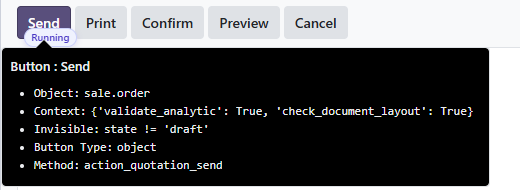

Example:
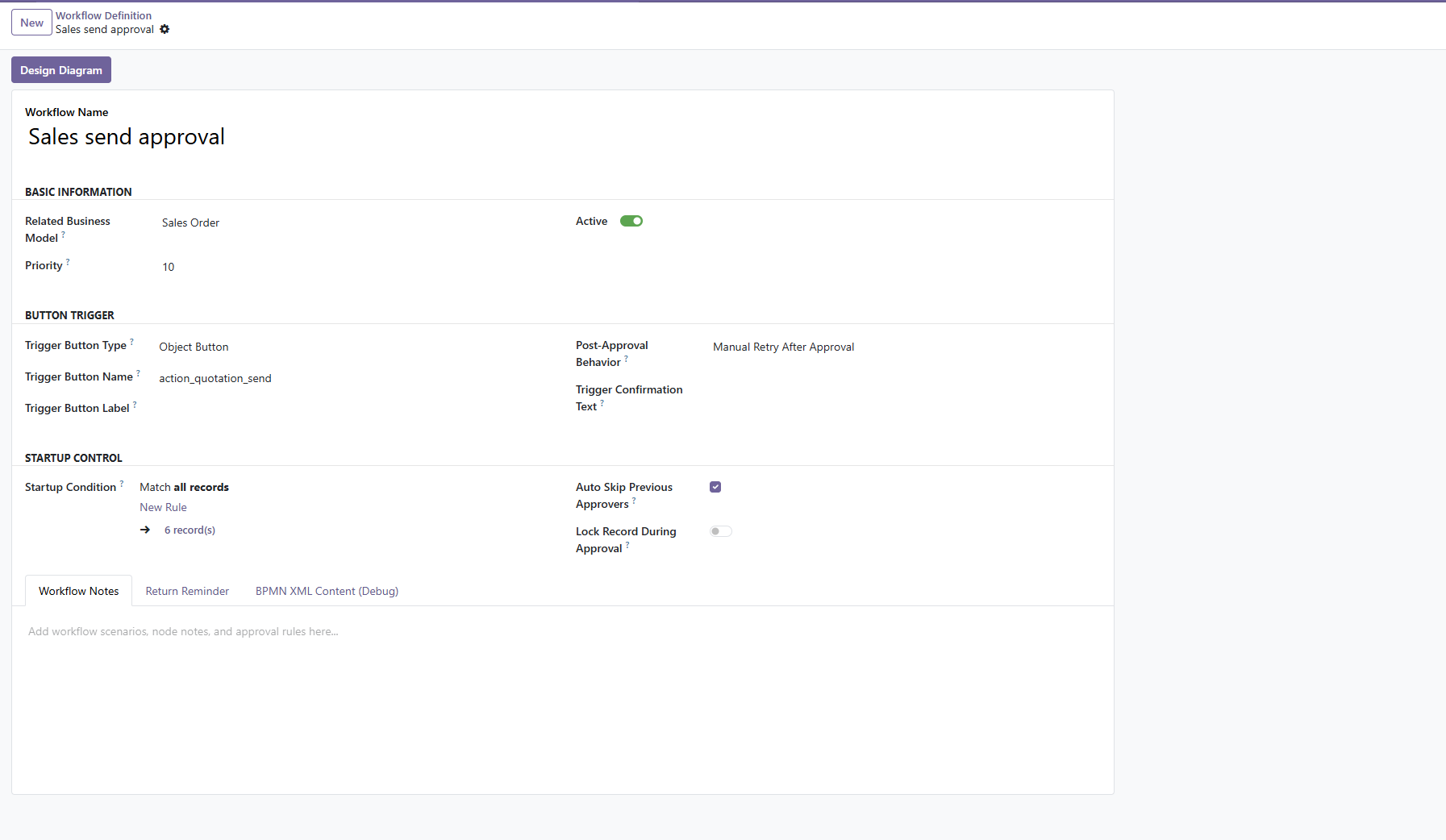
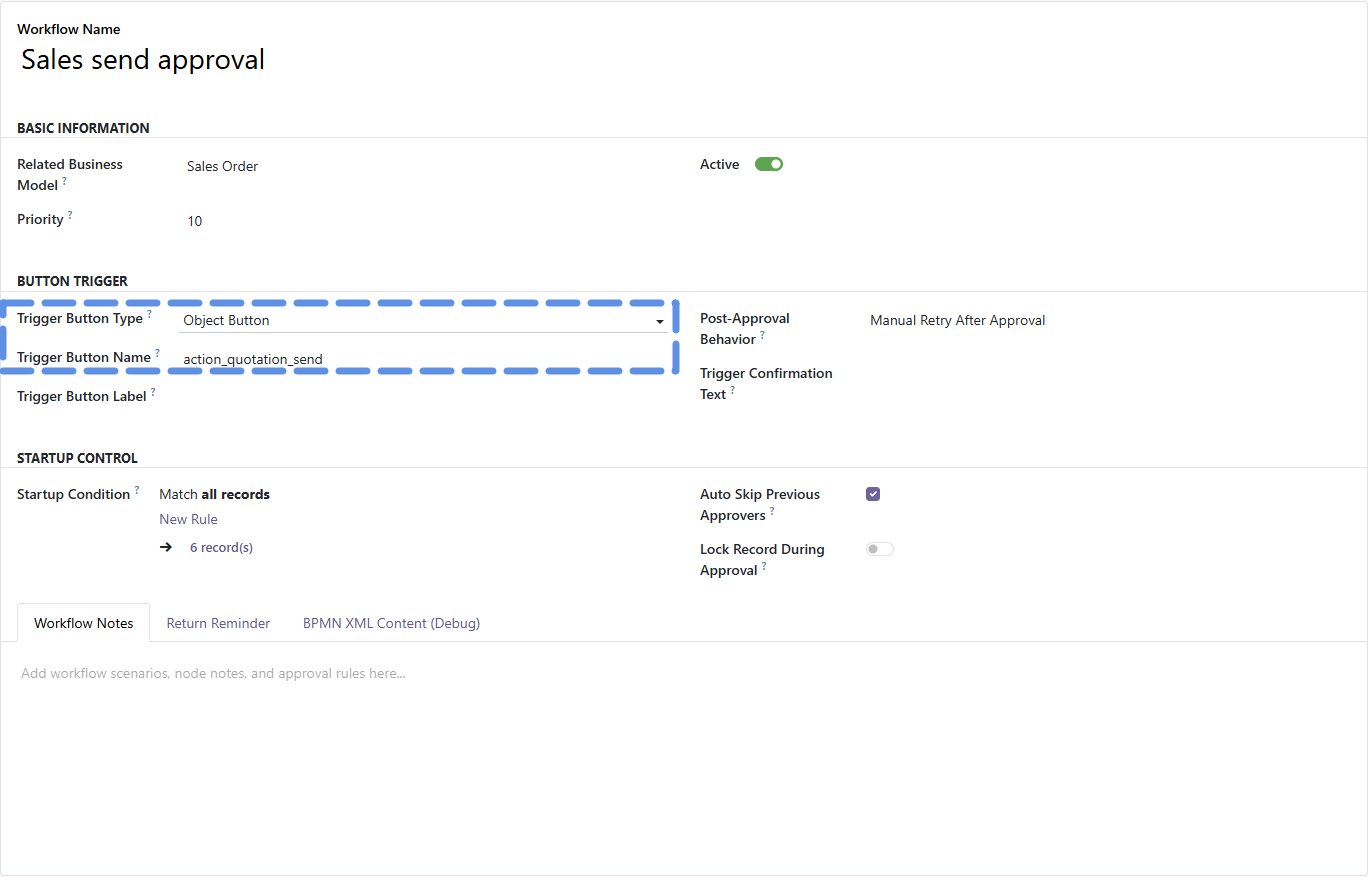
Example:
- Related business users have been created and can log in.
- If HR assignment is used, employees are linked to users, and departments, job positions, and manager relationships are maintained completely.
- If emails are sent, user mailboxes, outgoing mail servers, and
web.base.urlare configured correctly.
Main Fields of Workflow Definition
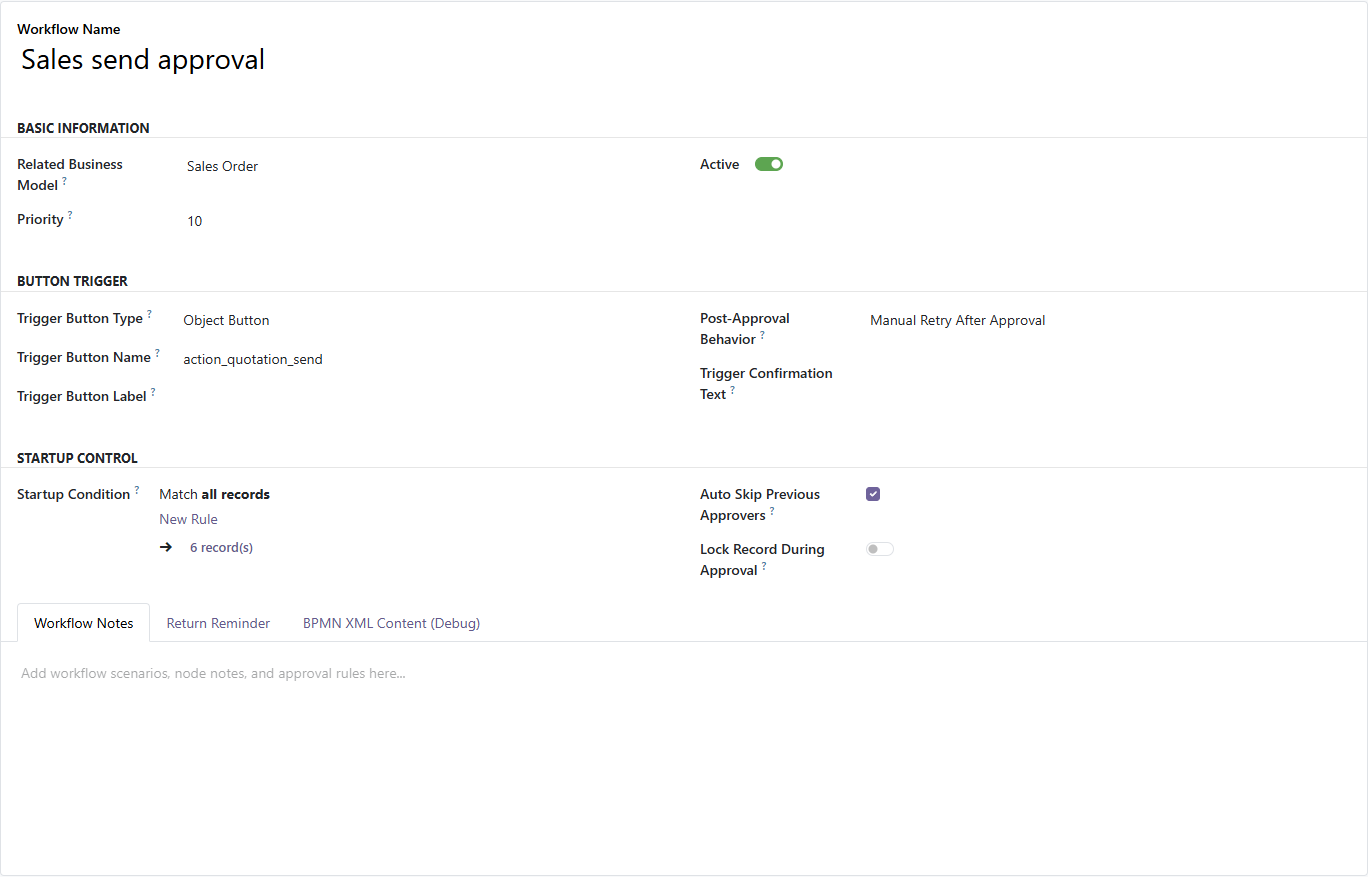
-
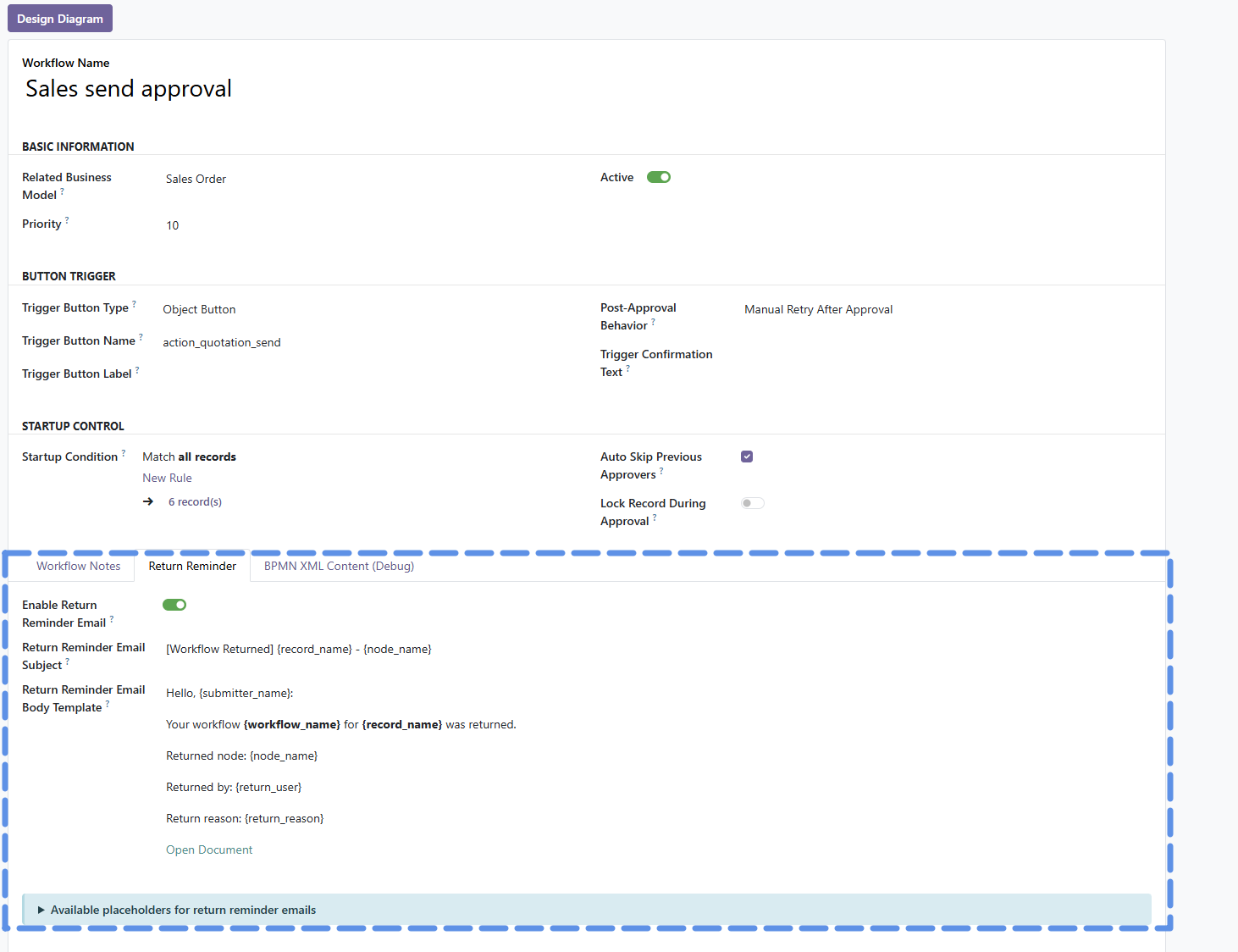
Workflow Name: the workflow name. It is recommended to include the business object and applicable scenario.
-
Related Business Model: the business model to bind, such as
sale.order. -
Priority: the priority. A smaller number has higher priority.
-
Enabled: whether the workflow is enabled.
-
Trigger Button Type: the trigger button type. The current main use is object button.
-
Trigger Button Name: the business button method name, such as
action_confirm. -
Trigger Button Label: a snapshot of the button display name, used for user identification.
-
Start Condition: the start condition, configured with the Odoo domain selector.
-
Behavior After Approval: how to process after approval is passed.
-
Auto-skip Previously Approved Users: whether to automatically skip later repeated approvals by users who have already approved in the same workflow.
-
Lock Document During Approval: prevents the document from being updated during the workflow. The lock uses the status at the time approval is initiated.
-
Workflow Description: records applicable scenarios, approval rules, node descriptions, notification rules, and test notes.
-
Return Reminder: sets the reminder template used when the workflow is returned.
Button Binding Requirements
- Trigger Button Name must be a real method name that exists on the target model.
- Common examples: sales order confirmation
action_confirm, quotation sendingaction_quotation_send. - When saving an enabled workflow definition, the system validates the business model and button method.
Start Condition Examples
[('state', 'in', ['draft', 'sent'])]
[('amount_total', '>=', 10000)]
Configuration suggestions:
- When multiple workflows exist for the same model and same button, they must be distinguished by start conditions.
- Start conditions should be mutually exclusive as much as possible to avoid one document matching multiple workflows at the same time.
- An empty condition or
[]means the workflow applies to all records. - Use smaller priority numbers for specific scenarios and larger numbers for fallback workflows.
Behavior After Approval
- Manual Retry After Approval: after approval is passed, the user returns to the business document and clicks the original business button again.
- Auto Execute After Approval: after approval is passed, the system automatically tries to execute the original business button.
During the initial go-live stage, Manual Retry After Approval is recommended first. Enable automatic execution only after evaluating that the business button logic is simple, has no secondary wizard, and has no complex interaction.
BPMN Design and Node Configuration
See the MT Designer Guide for details.
Reminders, Instances, and Personnel Maintenance
Global Reminder Configuration Path
- Approval Center -> Configuration -> Global Reminder Configuration
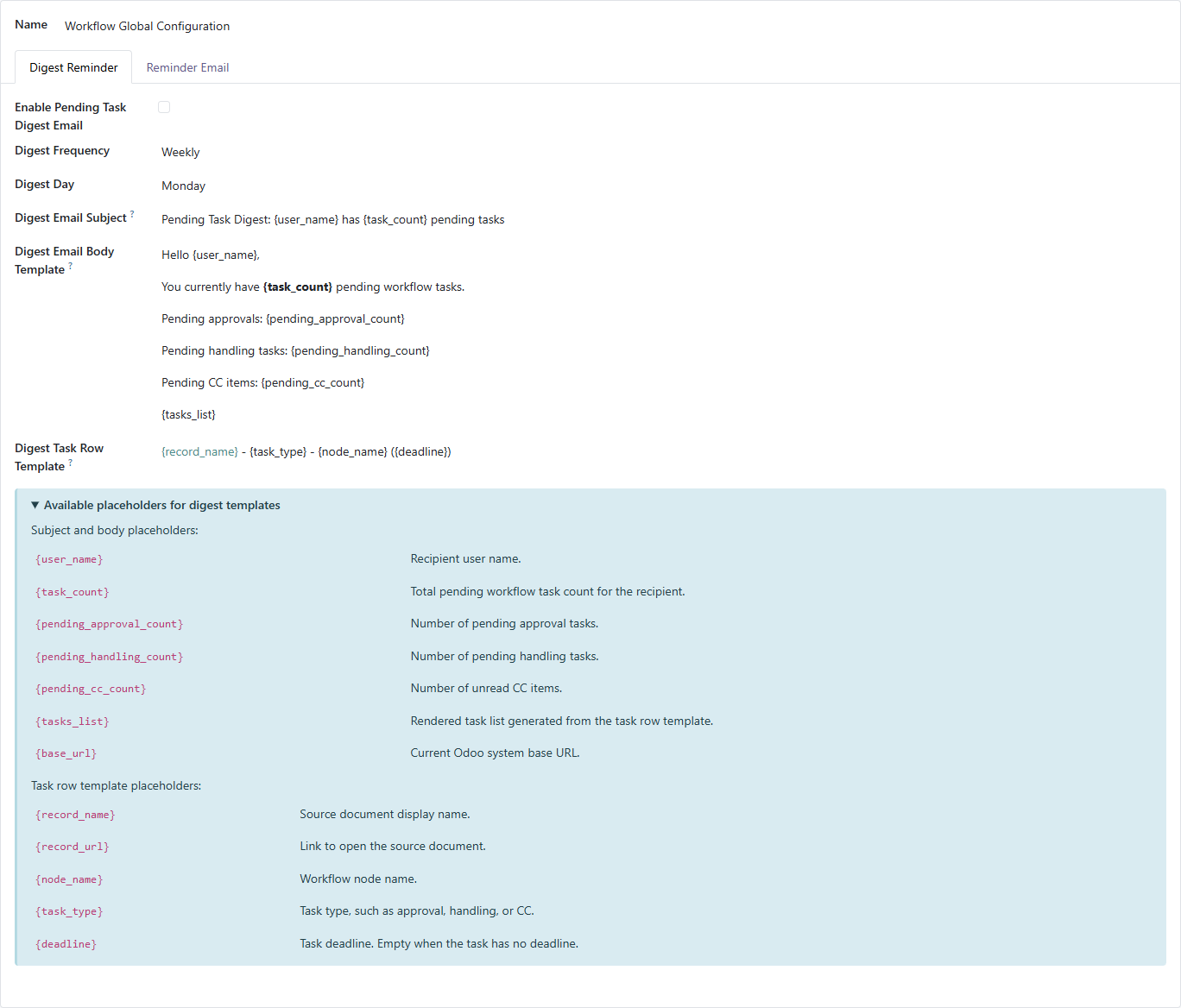
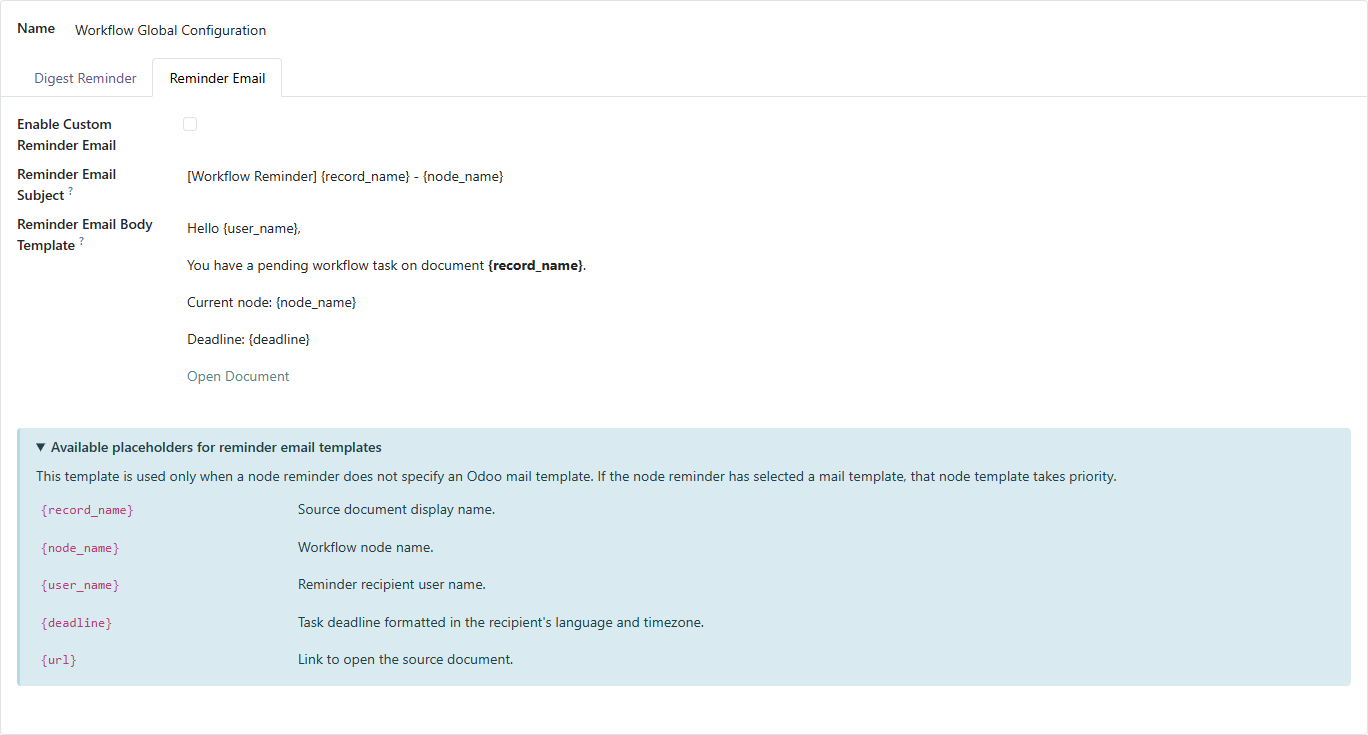
The current configuration is a singleton. It can configure pending task digest emails and node reminder emails. This configuration controls reminder content, frequency rules, and email templates. The actual background execution time is controlled by Odoo scheduled actions.
Common Global Reminder Settings
- Enable Pending Task Digest Email: whether pending digest email is enabled.
- Digest Frequency: digest frequency, configurable as daily or weekly.
- Digest Day: sending day for weekly digest.
- Digest Email Subject: digest email subject template.
- Digest Email Body Template: digest email body template.
- Digest Task Row Template: row template for each pending task in the digest email.
- Enable Custom Reminder Email: whether custom reminder email is enabled.
- Reminder Email Subject: node reminder email subject template.
- Reminder Email Body Template: node reminder email body template.
Available placeholders for pending digest email:
{user_name},{task_count},{pending_approval_count},{pending_handling_count},{pending_cc_count},{tasks_list},{base_url}.
Available placeholders for task row template:
{record_name},{record_url},{node_name},{task_type},{deadline}.
Available placeholders for node reminder email:
{record_name},{node_name},{user_name},{deadline},{url}.
Use the default templates first. After confirming that email links are stable, adjust copy and styles.
Scheduled Action Time Configuration
- Go to Scheduled Actions in the Odoo technical menu and search for
Workflow:. - Workflow: Process Timed-out Approval Tasks: processes timed-out approval tasks, default every 10 minutes.
- Workflow: Process Timed-out Handling Tasks: processes timed-out handling tasks, default every 10 minutes.
- Workflow: Send Pending Task Reminders: sends node reminders, default every 5 minutes.
- Workflow: Send Pending Digest: sends pending task digest emails, default daily.
Adjustment suggestions:
- Timeout processing and node reminders should not be set too frequently, to avoid pressure on the system and mail service.
- Pending digest email is usually set to once per day or once per week.
- Before changing scheduled actions, confirm server time zone, Odoo time zone, and user time zones.
- Disabling scheduled actions stops the corresponding reminders or timeout handling from running automatically.
Instance Management Path
- Approval Center -> Configuration -> All Workflows

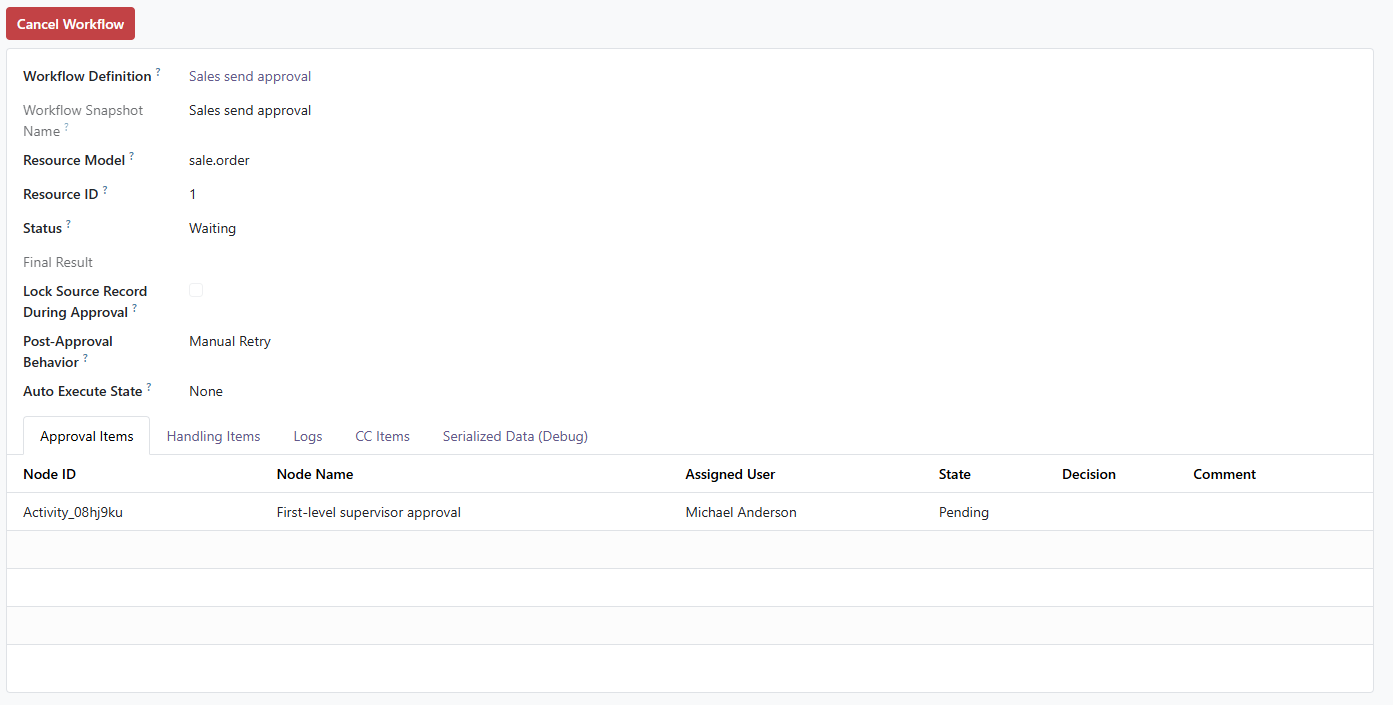
Administrators can view all workflow instances, including source document, workflow status, automatic execution status, approval items, handling items, CC items, and logs. If necessary, an unfinished workflow can be canceled. Cancellation closes unprocessed tasks and reminders, and affects whether the related document is locked or unlocked. Operate carefully.
Batch user replacement path:
-
Approval Center -> Configuration -> All Instances -> Batch Replacement
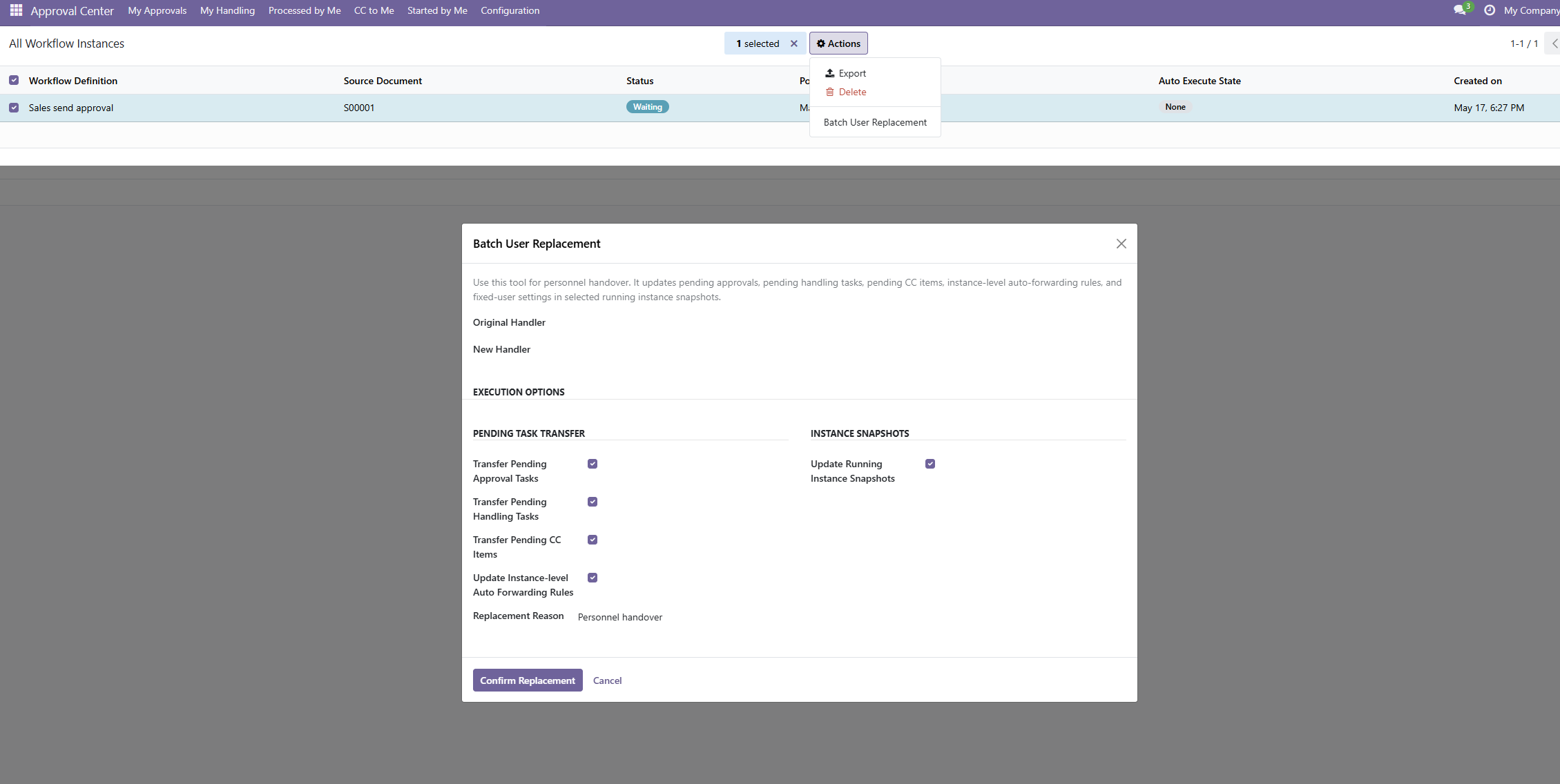
This menu is hidden by default. If needed, implementation personnel must enable it. It is suitable for resignation, long leave, job transfer, and workflow handover.
When personnel leave or transfer, administrators should focus on checking:
- Whether the leaving user still has pending approval tasks.
- Whether the leaving user still has pending handling tasks.
- Whether the leaving user is still among CC recipients.
- Whether workflow definitions fixedly specify this user.
- Whether running instance snapshots still keep this user.
- Whether instance-level subsequent transfer rules exist.
Batch user replacement can process:
- Pending approval tasks.
- Pending handling tasks.
- Pending CC items.
- Instance-level transfer rules.
- Fixed users in workflow definitions.
- Fixed users in running instance snapshots.
Before executing user replacement:
- Back up the database first.
- Verify in a test database first.
- Prefer a small number of instances for a trial run.
- Record the replacement reason and executor.
Verification, Troubleshooting, and Configuration Suggestions
After adding or modifying a workflow, verify at least:
- The workflow definition can be saved.
- Design Diagram can be opened, and the BPMN diagram can be saved and read back.
- Clicking the target business button enters workflow judgment.
- Documents that do not meet the start condition can follow the original business logic normally.
- Documents that meet the start condition can create workflow instances.
- Approvers can see pending tasks in My Approvals.
- Workflow status after approval or rejection matches expectations.
- Handling tasks appear in My Handling.
- CC tasks appear in CC to Me.
- Diagram can display the workflow diagram and logs.
- If email is enabled, emails can be sent normally and document links can be opened.
- If automatic execution is enabled, the original business action result after approval matches expectations.
Common troubleshooting:
- Workflow definition reports that the button does not exist when saving: check business model, button type, button method name, and whether the target business module is correct.
- User clicks the button but does not enter approval: check whether the workflow is enabled, whether model and button match, whether the start condition is matched, and whether there is already a running instance.
- Approver does not receive pending task: check BPMN node type, approver rules, employee-user binding, user permissions, and instance logs.
- Automatic execution fails: check whether the original button opens a wizard, whether it depends on current user permissions, whether the document status changed, and view
auto_execute_error. - Email is not sent: check mail server, user mailbox,
web.base.url, global reminders, node email channel, and cron.
Recommended configuration method:
- Configure a minimal workflow first, containing only one approval node.
- Verify button binding, initiation, approval, and log viewing.
- Add handling, CC, and branch conditions.
- Enable reminders, timeout, and adding approvers.
- Finally evaluate whether to enable automatic execution.
Maintenance principles:
- One workflow definition should be responsible for one clear business scenario.
- Multiple workflows for the same button must be clearly distinguished by start conditions.
- Workflow descriptions should record business rules and change reasons.
- Before adjusting production workflows, run the complete chain in a test database.