Timeout and Reminder
Timeout and Reminder
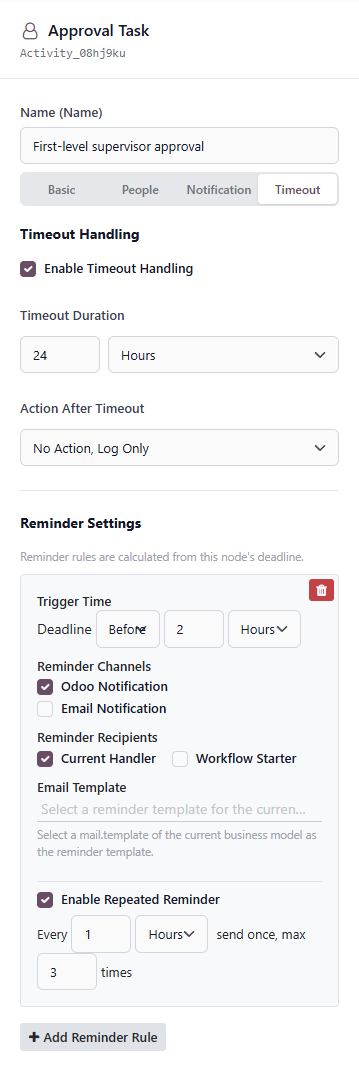
Timeout configuration sets a deadline for an approval task or handling task. When a task reaches the current node, the system calculates the task deadline based on the timeout duration configured here. Later reminder rules, repeated reminders, and timeout handling are all based on this deadline.
In short:
Timeout duration comes first, then the deadline. Reminder rules are calculated based on the deadline.
If timeout handling is not enabled on the node, or no timeout duration is configured, the task usually does not generate a deadline, and reminder rules do not have a reliable trigger basis.
Timeout Handling
Enable Timeout Handling
After "Enable Timeout Handling" is turned on, the system calculates the deadline when the task is created and records the deadline on the corresponding approval task or handling task.
For example:
- Approval task reaches the node at:
2026-05-11 10:00 - Timeout duration:
24 hours - Deadline:
2026-05-12 10:00
The system later checks through scheduled actions whether the task has exceeded the deadline.
Timeout Duration
Timeout duration consists of two parts:
- Number;
- time unit.
Common units include minutes, hours, calendar days, and working days.
Minutes
Calculated by actual minutes.
For example, if a task arrives at 10:00 and the timeout duration is 30 minutes, the deadline is 10:30.
Hours
Calculated by actual hours.
For example, if a task arrives at 10:00 and the timeout duration is 2 hours, the deadline is 12:00.
Calendar Days
Calendar days are calendar dates and include Saturdays and Sundays.
For example, if a task arrives at 15:00 on Friday and the timeout duration is 1 calendar day, the deadline is 15:00 on Saturday.
Calendar days do not skip weekends and do not consider public holidays.
Working Days
According to the current code logic, working days mean Monday to Friday.
They skip Saturday and Sunday, but currently do not read the Odoo working calendar and do not recognize national public holidays.
For example, if a task arrives at 15:00 on Friday:
- Timeout duration
1 working daymeans the deadline is15:00next Monday. - Timeout duration
2 working daysmeans the deadline is15:00next Tuesday.
Be especially aware that working days only skip weekends. They are not a complete enterprise attendance calendar.
Timeout Action
Timeout action determines what the system should do after a task exceeds its deadline.
Common actions include:
- Do nothing except record a log;
- auto-approve;
- auto-reject;
- transfer to another handler.
If "Do nothing except record a log" is selected, the system does not automatically complete the approval or handling task after timeout. It only writes a workflow log indicating that the task has timed out but no automatic handling action was configured.
If auto-approve is selected, an approval task is automatically processed as approved after timeout.
If auto-reject is selected, an approval task is automatically processed as rejected after timeout.
If transfer is selected, the task is transferred to the configured target user, job position, user group, or reporting-line person after timeout.
Note that approval tasks and handling tasks may support different timeout actions. In the current logic, approval tasks can support auto-approve, auto-reject, and transfer; handling tasks are more oriented toward timeout transfer or log only.
Default Scheduled Actions
Timeouts and reminders are not triggered in real time when users open the page. They are checked automatically by Odoo scheduled actions.
The current default scheduled actions mainly include three types.
Approval Timeout Check
Scheduled action name:
Workflow: Process Timed-out Approval Tasks
Default execution frequency:
Every 10 minutes
It finds approval tasks that have exceeded their deadline and are still in the pending state, then performs auto-approve, auto-reject, transfer, or log-only actions according to node configuration.
Handling Timeout Check
Scheduled action name:
Workflow: Process Timed-out Handling Tasks
Default execution frequency:
Every 10 minutes
It finds handling tasks that have exceeded their deadline and are still in the pending state, then performs the corresponding timeout handling according to node configuration.
Reminder Sending Check
Scheduled action name:
Workflow: Send Pending Task Reminders
Default execution frequency:
Every 5 minutes
It finds reminder records whose planned sending time has arrived and whose related task is still pending, then sends Odoo notifications, emails, or Chatter messages.
Therefore, timeouts and reminders are not triggered at millisecond-level precision.
For example, a reminder should be sent at 10:00, but the scheduled action runs every 5 minutes. The actual reminder may be sent at the next cron execution. Timeout handling is similar: after the deadline is exceeded, it is usually processed during the next 10-minute timeout check.
Reminder Settings
Reminder settings send reminders before or after a task deadline.
The core basis for reminders is:
Task deadline.
For example, if the task deadline is 18:00 and the reminder rule is "2 hours before deadline," the planned reminder time is 16:00.
Trigger Time
Trigger time consists of three parts:
- Deadline;
- before or after;
- offset value and unit.
For example:
2 hours before deadline
This means sending a reminder 2 hours before the task deadline.
If the task deadline is 18:00, the reminder time is 16:00.
Another example:
30 minutes after deadline
This means sending a reminder 30 minutes after the task has exceeded its deadline.
If the task deadline is 18:00, the reminder time is 18:30.
Reminder Channels
Reminder channels determine how reminders are sent.
Common channels include:
- Odoo notification;
- email notification.
Odoo notifications are suitable for internal reminders.
Email notifications are suitable when approvers may not always be logged in to Odoo.
If email notification is selected, make sure the Odoo mail server is configured correctly. Otherwise, the system may only generate email records and may not actually deliver emails to external mailboxes.
Reminder Recipients
Reminder recipients determine who receives the reminder.
Common recipients include:
- Current handler;
- workflow initiator.
Current handler is suitable for reminding approvers or handlers to process tasks promptly.
Workflow initiator is suitable for letting the initiator know that the task has not been processed, so they can follow up offline.
Email Template
Reminder settings can also select an email template.
The selected template is a mail.template email template corresponding to the current business model.
If a template is configured, email reminders use this template first to render the subject and body.
If no template is configured, the system continues to use the global reminder template or built-in default template.
Repeated Reminders
Repeated reminders continue to send reminders at a fixed interval when a task has not been completed.
For example:
- First reminder: 2 hours before deadline;
- repeated reminders enabled;
- send once every 1 hour;
- maximum 3 times.
"Maximum 3 times" means that the same reminder rule can be triggered at most 3 times, including the first reminder.
That is, if the first reminder has been sent successfully, the count becomes 1. If the task is still not processed and the maximum count has not been reached, the next reminder is scheduled.
How Repeated Reminder Time Is Calculated
Repeated reminders are not calculated as fixed time points from the original deadline. Instead:
After each reminder is sent, the next reminder time is calculated from the current sending time.
For example:
- The first reminder is sent at
16:00. - The repeat interval is 1 hour.
- The next reminder is scheduled around
17:00. - If the
17:00reminder is actually sent by cron at17:03, the following reminder is calculated from17:03.
Therefore, actual repeated reminder sending times are affected by scheduled action execution time and may have a deviation of several minutes.
Reminders Are Canceled After the Task Is Completed
If the approval task or handling task has already been completed, subsequent pending reminders are canceled and will not continue to be sent.
If a reminder is due and finds that its related approval or handling task is no longer in the pending state, it is automatically canceled.
Usage Suggestions
For ordinary approvals, use a relatively relaxed timeout, such as 24 hours or 2 working days.
For demo environments, use 1 minute or 5 minutes so that reminders and timeout effects can be seen quickly.
For formal business processes, use auto-approve and auto-reject carefully. For important workflows, "timeout transfer" or "log only" is recommended to avoid business risk caused by automatic release when nobody handles the task.
If repeated reminders are enabled, do not set too many repetitions. Usually 2 to 3 times is enough; otherwise, notification noise can become a problem.