Assignee Configuration
Assignee Configuration
Assignee configuration determines who the task at the current node is assigned to. Both approval nodes and handling nodes can configure assignee sources.
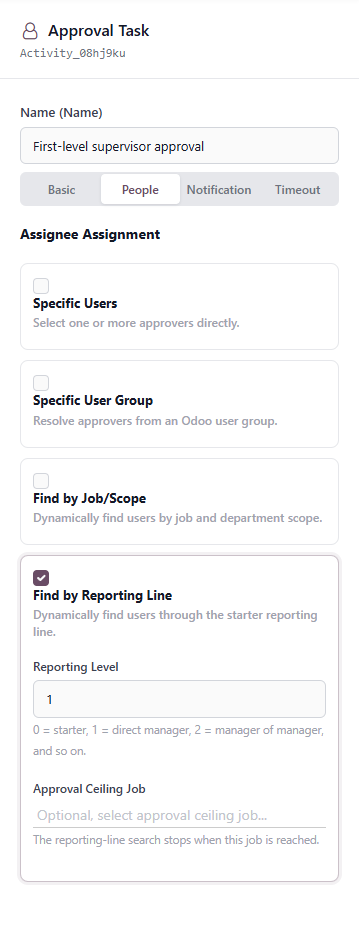
Currently, four assignee sources are supported:
- Specified users;
- specified user group;
- lookup by job position and scope;
- lookup by reporting line.
These methods can be combined according to the business scenario. In actual configuration, however, keep the setup clear and avoid configuring too many sources at once. Otherwise, it becomes difficult to troubleshoot why a task was assigned to a specific person.
Specified Users
"Specified Users" directly selects one or more Odoo users as handlers.
This field supports multiple selection.
In other words, you can select one user or multiple users at the same time.
Suitable scenarios:
- Approval is always handled by a fixed owner.
- Several fixed managers handle it together.
- A few users are specified as candidate approvers.
- Temporary demo or test workflows.
Note that if the current node uses the Any Approver mode, any one of the selected users can handle the task. If the current node uses Countersignature mode, the system determines passing according to the countersignature rules.
Example:
Specified users are A, B, and C.
If the approval mode is Any Approver, any one of A, B, or C can approve.
If the approval mode is Countersignature, the system checks the minimum approvals or all-approval rule.
Specified User Group
"Specified User Group" resolves handlers from an Odoo user group.
This field supports single selection.
In other words, a node can select only one user group. The system generates handlers based on the users in that group.
Suitable scenarios:
- A type of approval is handled by a permission group.
- You do not want to maintain users one by one.
- You want to manage candidates through Odoo user groups.
- Examples include "Sales Manager Group," "Finance Approval Group," and "Purchasing Owner Group."
Note that the user group is only a source. The final result is still resolved to specific users. The available users in the group are the users that may be assigned to the current node.
Lookup by Job Position and Scope
"Lookup by Job Position and Scope" dynamically finds handlers based on employee job positions and a search scope.
This method is suitable for scenarios with a relatively clear organization structure, for example:
- Find all finance managers.
- Find the department owner in the current department.
- Find a specific job position in the submitter's related department.
- Find a certain type of job position under a specified department scope.
This configuration mainly has two parts: Job Position and Search Scope.
Job Position
"Job Position" specifies the job position to search for, for example:
- Finance Manager;
- Sales Director;
- Regional Sales Manager;
- HR Manager;
- Department Owner.
The system finds corresponding users based on job position information in employee profiles.
Search Scope
Job position lookup supports three scopes.
| Scope | Meaning |
|---|---|
| Global | Search for people with this job position across the entire company |
| Within specified department | Search only inside the specified department |
| Within submitter-related department | Search according to the workflow initiator's department and the department hierarchy |
Global
"Global" means that the department is not restricted. Anyone whose employee job position matches can be found.
Suitable scenario:
The company has only one finance manager, and all workflows should find that finance manager for approval.
Within Specified Department
"Within specified department" means selecting a department first, then searching for the corresponding job position inside that department.
Suitable scenario:
Approval is always handled by the regional sales manager of the East China Sales Department.
Within Submitter-related Department
"Within submitter-related department" means dynamically searching based on the workflow initiator's department.
This scope is suitable for finding corresponding job positions according to the organization hierarchy.
It is usually used together with department level:
0: current department;1: parent department;2: grandparent department;- and so on.
Example:
The initiator belongs to "East China Zone 1 Sales Group."
If the department level is
1, the system searches in its parent department.If the job position is "Regional Sales Manager," the system can dynamically find the manager for that region.
This method is suitable for regional approval, department owner approval, business-line owner approval, and similar scenarios.
Lookup by Reporting Line
"Lookup by Reporting Line" finds handlers by walking upward along the manager relationship in the initiator's employee profile.
It is suitable for common approval scenarios such as "find the direct manager," "find the manager's manager," or "find a certain leader in the management chain."
Reporting Level
The reporting level controls how many levels upward to search.
0: the initiator themself;1: direct manager;2: manager's manager;3: the next level up;- and so on.
Example:
Reporting level
1means finding the initiator's direct manager.Reporting level
2means finding the manager's manager.
The value 0 is important. It means the initiator themself. In some handling nodes, if the applicant needs to supplement materials, reporting level 0 can be used.
Approval Upper-limit Job Position
"Approval Upper-limit Job Position" limits the highest position that reporting-line lookup may reach.
If an upper-limit job position is configured, the system stops searching upward once it reaches that position.
Suitable scenarios:
- Approval should go no higher than department manager.
- Approval should go no higher than sales director.
- You do not want the workflow to keep searching upward to the general manager.
- A type of business should only be approved within a department.
Example:
Reporting level is set to
3, but the approval upper-limit job position is "Sales Director."If the upward search reaches the sales director, the system will not continue to higher levels.
Usage Suggestions
If the handler is fixed, use Specified Users first.
If handlers are maintained by permission group, use Specified User Group.
If handlers are related to job positions, use Lookup by Job Position and Scope.
If handlers are related to the initiator's manager hierarchy, use Lookup by Reporting Line.
In actual configuration, first ask:
Is the handler for this node a fixed person, a group, a job position, or the initiator's manager?
Choose the assignee source according to that answer.