Notification Configuration
Notification Configuration
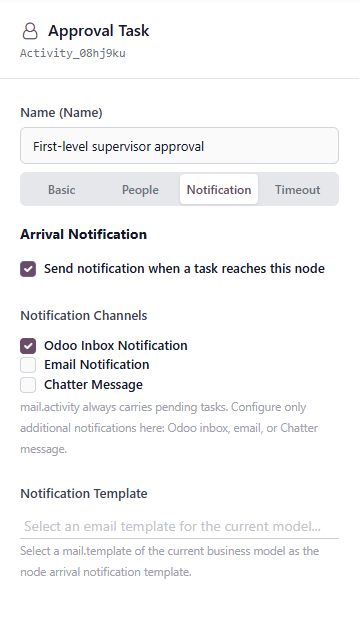
Notification configuration controls whether the system proactively notifies related people when a task reaches the current node.
This chapter mainly describes arrival notifications. Reminder rules, repeated reminders, deadlines, and timeout handling can be described separately in the later "Timeout" chapter, because reminder times are calculated based on the task deadline, and the deadline comes from the node's timeout configuration.
Arrival Notification
"Arrival Notification" means that when the workflow reaches the current node and creates an approval task, handling task, or CC task, the system immediately sends a notification.
For example:
- An approval task reaches an approval node.
- A handling task reaches a handling node.
- A CC task reaches a CC node.
If "Send notification when task reaches this node" is enabled, the system sends messages through the selected notification channels after the task is created.
If this option is disabled, the task is still created, but no extra arrival notification is sent.
Notification Channels
Three arrival notification channels are currently supported.
Odoo Internal Notification
Odoo internal notifications are sent through Odoo's internal messaging system.
Suitable scenarios:
- You want users to see notifications after logging in to Odoo.
- Approvers mainly process tasks inside Odoo.
- You do not want all notifications to be sent by email.
- Internal message records need to be retained.
Email Notification
Email notifications are sent through Odoo's email system.
Suitable scenarios:
- Approvers may not always be online.
- Users need to be reminded through email.
- The company uses email as an official notification channel.
- Notifications need to be received by external email clients.
Note that whether an email is actually sent depends on the Odoo mail server configuration. If SMTP is not configured, the system can usually only generate email records and cannot actually deliver emails to external mailboxes.
Chatter Message
Chatter messages are written into the communication history of the business document.
Suitable scenarios:
- You want to see workflow notifications on the business document.
- Later viewers of the document need to know what happened in the workflow.
- Approval arrival, handling arrival, CC, and other information need to remain in the document history.
- Approval information should stay in the same context as the business document.
Chatter is more suitable for business traceability. Odoo internal notifications and emails are more suitable for reminding specific handlers.
Notification Template
Notification templates specify the email content template used by arrival notifications.
The selected template is a mail.template email template corresponding to the current business model.
For example, if the current workflow is bound to the sales order model, the template should be a mail template under the sales order model. If the workflow is bound to the purchase order model, the template should be a mail template under the purchase order model.
After a notification template is selected, the system renders the email subject and body according to that template when sending email notifications. This allows different business models and different nodes to use different notification content.
Suitable scenarios:
- Sales order approval uses a sales order template.
- Contract approval uses a contract template.
- Purchase approval uses a purchase template.
- High-value approvals use more formal email content.
- Different nodes send different messages.
If no notification template is selected, the system sends the default notification content. For formal business workflows, prepare dedicated email templates according to the business model. This makes email content clearer and also better suited for later multilingual adaptation.
Usage Suggestions
For lightweight internal reminders, enable Odoo Internal Notification.
If notifications should remain in the business document history, enable Chatter Message.
If approvers may not log in to Odoo frequently, enable Email Notification and configure the corresponding mail server.
For formal workflows, select an appropriate mail.template email template for key nodes, so that not every node uses the same default notification content.